How to Turn a Photo of Your Handwritten Signature into a Clean, Usable Image
🖊 Use your real signature, just as it is
A handwritten signature has a character that typed fonts and even on-screen drawing cannot quite reproduce. If you would like to use the signature you actually write on paper — exactly as it looks — the practical route is to import it from a photo.
This article focuses on importing from paper. (Drawing a signature directly on the screen is covered by the guide's handwriting entry.)
✍️ Tips on paper — quality is decided before the photo
- Use plain white paper: ruled or colored paper interferes with the automatic background removal. A plain white sheet, like copy paper, works best.
- Write boldly and large: use a pen with a clear line and write larger than usual. Bold strokes import with clean, crisp edges.
- Smudges cannot be fixed later: ink smears and uneven strokes are imported exactly as they are. Take the photo only once you have a signature you are happy with.
📥 Import steps
Photograph the paper the same way as a document: directly above, no shadows, bright light. Fill most of the frame with the signature for the cleanest result.
-
1
Choose "Load from file" under Handwriting / Image
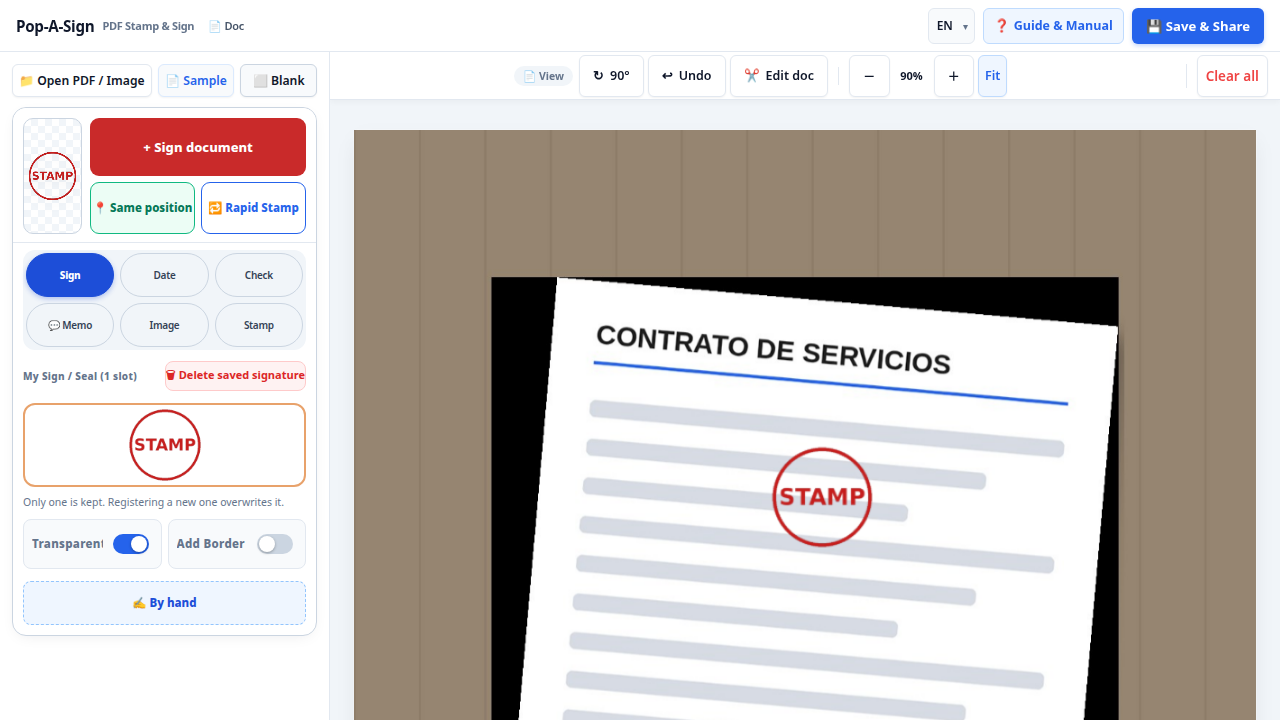
In Pop-A-Sign’s stamp tools, open "Handwriting / Image" and choose "Load from file" to import a photo or image (PNG, JPG, or WebP) of your signature on paper.
-
2
The white background becomes transparent automatically
On import, the white background is made transparent automatically. Only the strokes of your signature remain, so it sits naturally on top of any document.
-
3
Adjust the crispness
If the lines look too faint or too heavy, adjust the crispness control until the outline is clear and easy to read.
-
4
Place it — and keep it only if you choose to
Place the signature anywhere on the document. It is kept in this device’s browser only if you tick "Save on this device" when registering it; otherwise it disappears when the page is closed or reloaded.
Good to know: leaving "Save on this device" unticked is the safer choice for one-time use or on someone else’s device — nothing remains afterwards. See the "Import from an image" entry in the user guide for the full operation.
⚠️ Please note
⚠️ This tool adds signatures and stamp images to PDFs; it does not guarantee the legal validity of a signature. For important documents, please follow the method specified by the receiving party. Signatures you register are stored only in your device’s browser — if you use a shared computer, delete them afterwards with the delete button in the app.
🎯 Summary
Importing a paper signature comes down to three things: write boldly on white paper, photograph it straight and bright, and finish with the crispness adjustment. Your own handwriting, exactly as it is, ready to place on any PDF.
📱 Try Pop-A-Sign free now
No sign-up, no installation. Open your browser and go from importing to placing and saving in one flow.
▶ Launch the free app