
[iPhone & iPad] How to Add a Handwritten Signature to a PDF for Free (No App Needed)
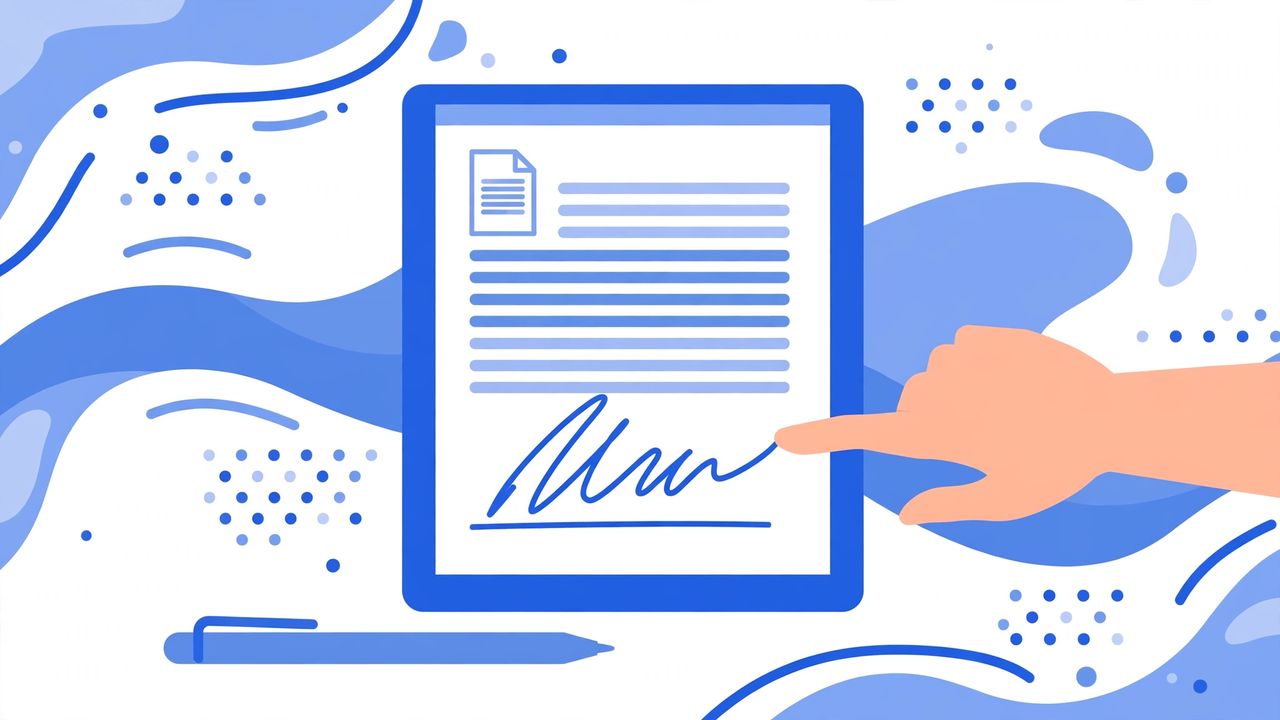
🔍 Doesn't a font-made signature feel a bit lifeless?
When you are asked to sign a contract or an application form, have you ever simply pasted in text picked from a font, using the "signature" feature of a PDF editor? It is convenient, but it looks unmistakably mechanical, and it carries none of the persuasiveness of a signature you wrote yourself. And when you try to paste a prepared image of a seal or signature onto a PDF, the size and position often refuse to land where you want, depending on the page layout, so you end up redoing it again and again.
On the other hand, subscribing to a paid PDF editing app just for signing, or scanning a signature written on paper, is a bit much for everyday use.
The bottom line: with Pop-A-Sign, you can draw your signature directly with your finger on your iPhone or iPad screen and place it anywhere you like on the PDF. No app installation is needed — as long as you have a browser, you can finish signing on the spot.
🚀 Draw your signature on screen with your finger, and place it on the PDF as-is
Pop-A-Sign's handwritten signature feature is built around the touchscreen: you can switch between two pen tips, ballpoint and fountain pen, and draw your signature with natural-looking strokes. A signature you draw once is saved in your device's browser, so from next time on you can call up the same signature with a single tap and reuse it.
Three steps to add your signature
-
1
Open the PDF and choose signature mode
Load the PDF you want to sign, and select "Handwritten signature" from the stamp tools. If it is your first time, tap "Create a new signature".
-
2
Draw your signature on screen with your finger
In the drawing area that appears, write your usual signature with your finger (or an Apple Pencil). If you want to redo it, one tap erases it, and you can rewrite it as many times as you like.
-
3
Place it, adjust the size, and save
Drag the signature you drew onto the signature line with your finger, and adjust its size with a two-finger pinch. Once the position is set, save and share it as a PDF, and you are done.
Tips for using it on iPhone and iPad
Pop-A-Sign runs in a standard browser such as Safari, so there is no need to install a dedicated app or search the App Store. On an iPad, an Apple Pencil lets you draw your signature with finer strokes. Registered signatures are designed to be stored only in the browser on that device, so if you use it on a shared computer or phone, it is a good idea to delete them afterwards using the delete button in the app.
⚠️ Signatures created and placed with this feature are intended for simple, everyday uses such as confirmations and consent. They do not cover official identity verification, or contracts that require a strict electronic signature under electronic signature law. For important contracts, please check the formal signing method specified by the party you are submitting to.
🎯 Summary
A handwritten signature looks more natural than a signature made from a font, and it leaves a different impression on the recipient. With Pop-A-Sign, you can place a signature drawn with your finger on your iPhone or iPad screen directly onto a PDF — no app needed, and free. Next time you are asked to sign a document, try this method that works entirely in your browser.
📱 Try Pop-A-Sign free now
No sign-up, no installation. Just open your browser and add a handwritten signature right away.
▶ Launch the free app